3–150 Frontline Teams: Why Bossy Is Our Deputy Alternative Pick
Christian MontenegroOctober 3, 202617 min read

For most frontline teams, Bossy is our pick as a Deputy alternative because it pairs scheduling with task verification and daily operations tracking rather than scheduling alone. If your priority is a low-cost time-tracking tool, Jibble is worth a look (check its pricing page for what the free tier covers). If time theft and attendance accuracy matter most, Buddy Punch deserves a close look. Trial a few options and confirm your payroll export works before you commit.
TL;DR:
- Bossy excels for teams needing task verification, work progress tracking, and accountability beyond simple scheduling, especially with photo proof and approval queues.
- Jibble advertises a free tier and GPS and facial recognition features (check which plan includes what), a fit for small teams focused on accurate time tracking without additional operational tools.
- Buddy Punch is best suited for companies combating buddy punching and time theft, with detailed attendance controls, audit logs, and geofencing options.
- When choosing, consider your team size, scheduling complexity, core integrations, and whether mobile offline functionality is essential for your operations.
- Migration from Deputy typically takes 12 to 16 weeks, requiring careful planning, parallel runs, and verifying payroll export formats to ensure a smooth switch.
Table of Contents
- Quick picks: the top three alternatives and who they fit
- How the top alternatives compare on the features that matter
- Side-by-side profiles of each alternative
- What each tool does well, and what to check before switching
- How to choose the right alternative for your team
- Your migration timeline for switching platforms
- How support and service quality stack up
- What user reviews tell you, and what they don't
- Security and compliance features to check before you sign
- Why an operations-first approach beats a scheduling-only one
- Start your switch with a free Bossy plan
- FAQ
- Sources
Quick picks: the top three alternatives and who they fit
You don't need to test sixteen tools before making a decision. Most managers land on one of three paths, depending on what's actually breaking in their current setup.
- Bossy: best for frontline operations that need scheduling, task verification, and accountability in one place, not just a shift calendar.
- Jibble: best for small teams that want solid time tracking, GPS, and facial recognition without paying for features they won't use.
- Buddy Punch: best for teams fighting time theft or buddy punching, with attendance controls and audit trails built for that specific problem.
When you demo any of these, start by testing the thing that's currently costing you the most time. If your managers chase down task completion by walking the floor, test verification workflows first. If payroll disputes eat your week, test the time clock and its export format before anything else. If shift coverage is the daily fire, test how fast you can build a week and handle shift swaps. A shortlist only saves time if you test it in the order your pain actually shows up, not the order a vendor's homepage suggests.
One more thing worth checking during any trial: how the mobile app behaves when a shift worker is in a basement, a walk-in freezer, or a rural job site with no signal. G2's competitor data shows reviewers repeatedly comparing Connecteam, Homebase, and When I Work head to head, which tells you these three get tested together often enough that their differences are worth knowing before you start a trial.
How the top alternatives compare on the features that matter
Pricing models vary more than people expect. Some tools charge per seat, some charge per location, and a few bundle a flat rate for a set number of users with add-ons above that. A per-seat model is simple to forecast, but it punishes growth. A flat-rate model with included seats can keep your bill predictable as you add a few employees instead of penalizing every new hire.
Scheduling depth is where manager hours get saved or lost. Auto-scheduling that respects availability and labor rules cuts the time spent building a week's roster from hours to minutes. Open-shift posting and swap approval workflows matter just as much: a tool that lets staff claim open shifts and lets managers approve swaps from their phone removes a huge chunk of back-and-forth texting.
Time tracking and attendance features split into three tiers:
- Basic clock-in/out: fine for a single-location team with low turnover and high trust.
- GPS and geofencing: worth it the moment you have remote or multi-site staff, since it confirms people clocked in where they were supposed to be.
- Facial recognition: matters most for teams that have dealt with buddy punching or need an audit-proof record for compliance reasons.
Integrations deserve real scrutiny, not a checkbox glance. Test your actual payroll provider, not a generic "payroll integration" claim. Confirm POS integration if you're in food service or retail, and check whether the accounting connection exports in a format your bookkeeper can use without manual cleanup. A tool that claims "100+ integrations" but lacks the one you need isn't useful to you.
Mobile app quality and onboarding speed matter more for small teams than for enterprise buyers, since there's usually no dedicated IT person to troubleshoot a clunky app. Look for same-week onboarding and a support team that responds in hours, not days.
Pro Tip: Run your busiest week's schedule through any tool you're trialing, not a quiet week. Complexity reveals a tool's real limits.
Side-by-side profiles of each alternative
Here's how the main contenders stack up on the dimensions that actually change daily operations.
What each tool does well, and what to check before switching
-
Bossy: What it is. An operations platform built around linking daily tasks to company goals, not just filling a weekly roster. Best for frontline teams between 3 and 150 employees that need scheduling, task verification with photo proof, and inventory control in one system. Standout: managers get an approval queue for completed work instead of trusting that a checklist got done. Pricing shape: the Free plan covers task verification and the approval queue; scheduling, the geofenced time clock, photo proof, checklists, and inventory are on Operations at $30 a month or Scale + at $50 a month (Growth, at $25 a month, is the people-development plan with 1-on-1s, feedback, and team messaging). Migration note: map your existing shift patterns and task checklists before importing staff records, since verification workflows depend on having tasks defined first.
-
Jibble: What it is. A time-tracking and attendance app with a notably generous free tier. Best for small teams that mainly need to clock hours accurately without paying for a full operations suite. Standout: GPS and facial recognition features are part of its pitch; check its pricing page for which plans include them. Migration note: confirm your payroll export format before go-live, since Jibble's free-tier feature set is the main draw and advanced reporting often sits behind a paid tier.
-
Connecteam: What it is. An all-in-one frontline app combining scheduling, task lists, and internal communication. Best for teams that want training content and team chat bundled with scheduling. Standout: the combined feature set reduces the number of separate apps a shift worker needs. Migration note: plan time to build out your training modules, since that feature only pays off once content is loaded.
-
When I Work: What it is. A scheduling-first tool built around fast shift planning. Best for managers whose main pain point is building and adjusting the weekly roster. Standout: shift-swap and shift-offer workflows are fast for staff to use. Migration note: verify how it exports hours to your payroll system, since its core strength is scheduling rather than deep payroll automation.
-
Homebase: What it is. Scheduling and basic hiring tools aimed at small hourly businesses. Best for small teams that want scheduling and applicant tracking without a steep learning curve. Standout: the onboarding experience is built for first-time software adopters. Migration note: check whether your location count fits within its free tier before assuming the paid upgrade path works for your budget.
-
Buddy Punch: What it is. A time-tracking tool built around preventing time theft. Best for teams that have had real problems with buddy punching or inflated hours. Standout: audit logs and attendance controls are more detailed than most scheduling-first competitors. Migration note: set your rounding rules and geofence radius before your first live pay period to avoid disputes.
-
7shifts: What it is. Restaurant-focused scheduling with labor forecasting. Best for restaurants and hospitality teams that need to match staffing to predicted sales. Standout: forecasting tools are built specifically around restaurant labor patterns. Migration note: feed it a few months of sales history before go-live so forecasts aren't built on thin data.
-
Clockify: What it is. A free time-tracking tool with project-level reporting. Best for teams that need billing-ready time reports more than shift scheduling. Standout: a free tier aimed at teams that log hours against projects (check its pricing page for current user limits). Migration note: it lacks built-in task verification or inventory tools, so plan to keep a separate operations system if you need those.
-
OnTheClock: What it is. A straightforward time clock with PTO tracking. Best for small hourly teams that want punch-in simplicity over a full feature suite. Standout: setup is fast enough for a single manager to configure in an afternoon. Migration note: confirm PTO accrual rules carry over correctly, since accrual policies vary by state and industry.
-
Sling: What it is. A scheduling app with built-in messaging and task assignments. Best for retail and small-service teams that need scheduling and quick team communication together. Standout: shift reminders and messaging reduce no-shows. Migration note: import your shift templates first, since recurring patterns save the most setup time.
-
Shifton: What it is. A multi-location scheduling tool with multilingual support. Best for operations spanning multiple sites or language groups. Standout: central scheduling across locations from a single dashboard. Migration note: set up location-level permissions before adding staff, since multi-site structures get messy if added after the fact.
-
Timesheet 365: What it is. A timesheet and rostering tool built on Microsoft 365. Best for teams already standardized on Microsoft's ecosystem. Standout: tight integration with Teams and Outlook calendars. Migration note: confirm your existing Microsoft licenses include the tiers this tool requires.
-
Rippling: What it is. A broad HR, payroll, and workforce suite. Best for organizations that want payroll, benefits, and scheduling under one roof. Standout: deep automation across HR functions beyond scheduling alone. Migration note: expect a longer implementation given the breadth of modules involved.
-
Dayforce: What it is. An enterprise HR and payroll platform with workforce management built in. Best for larger organizations needing enterprise-grade compliance and payroll depth. Standout: enterprise-level reporting and compliance tooling. Migration note: budget for a longer rollout given its enterprise scope.
-
Humanity Schedule by TCP: What it is. A dedicated scheduling engine that scales from small teams to large ones. Best for organizations that want scheduling as a standalone, well-built module. Standout: scheduling logic built to handle complex shift rules. Migration note: confirm it integrates with whatever time-tracking and payroll tools you already run.
-
Hubstaff: What it is. A time-tracking tool built around remote and distributed teams. Best for companies tracking productivity and hours across dispersed workers. Standout: activity monitoring features suited to remote work rather than on-site shifts. Migration note: it's a weaker fit for in-person frontline teams that need task verification tied to a physical location.
How to choose the right alternative for your team
Work through this checklist before you commit to anything:
- Count your users and locations. A per-seat pricing model changes dramatically between 10 employees and 60.
- Rate your scheduling complexity. Simple weekly shifts need less than a multi-site operation with rotating roles.
- Decide how strict your attendance controls need to be. Time-theft history points you toward GPS, geofencing, or facial recognition.
- List every integration you actually use. Payroll, POS, and accounting tools should be tested with your real account, not a demo sandbox.
- Check your reporting needs. Labor cost reports, compliance exports, and task completion logs vary widely by tool.
- Test mobile and offline behavior. A shift worker without signal still needs to clock in reliably.
During any demo, ask these questions directly: Can you export all historical data in a standard format? What's the exact payroll export format, and can I see a sample file? Is there an API or SSO option for larger teams? What's your data backup and retention policy? What's the support response time guarantee?
Red flags worth walking away from: hidden fees that only appear at checkout, no data export option, reporting that can't be customized to your pay periods, and vague answers about backup policy.
Pro Tip: Run a parallel payroll cycle: process one real pay period in both your old and new system, then compare the output line by line before fully switching over.
Your migration timeline for switching platforms
Software Advice's implementation research outlines a realistic 12 to 16 week timeline broken into five phases: planning and requirements take 3 to 4 weeks, configuration and development take 4 to 5 weeks, data migration takes 2 to 3 weeks, testing takes 2 weeks, and training plus go-live takes 2 weeks.
The order matters more than the calendar. A foundation-first approach means you configure rules and permissions before migrating any data, and you migrate data before turning on integrations. Skipping that order creates a mess that's hard to untangle later.
- Run both systems in parallel on one real pay period before fully cutting over.
- Verify every payroll export field matches what your provider expects.
- Build a rollback plan in case testing reveals a blocker.
- Train managers before frontline staff, since they'll field the first round of questions.
The most common pitfall is migrating historical data before permissions are set, which forces a second cleanup pass. Set roles first, migrate second.
How support and service quality stack up
Support quality tends to track company size more than feature depth. Smaller, newer platforms like Jibble and OnTheClock often respond faster to small-team support tickets simply because their support teams aren't buried under enterprise contracts. Larger suites like Rippling and Dayforce typically offer dedicated account management, but response times for standard tickets can run slower unless you're on a higher tier.
Tools built specifically for frontline operations tend to prioritize same-week onboarding to support buyers without dedicated IT staffers for long rollouts. That's worth testing directly: ask how quickly a real support ticket gets a real answer, not a canned response.
Before you sign anything, ask what channels are included (chat, email, phone), whether onboarding help is included or billed separately, and whether there's a dedicated contact during your first 30 days. A tool that looks great in a sales demo can still leave you stuck if support disappears after the contract is signed.

What user reviews tell you, and what they don't
G2's alternatives data shows reviewers commonly comparing Connecteam, Homebase, and When I Work against each other, which suggests these three solve overlapping problems for similar buyers. That pattern is useful for narrowing your shortlist, but a star rating alone won't tell you whether a tool fits your specific workflow.
Reviews are most useful when you read them for specific complaints, not overall scores. Look for recurring mentions of a particular integration failing, a mobile app crashing, or support being slow. A handful of detailed complaints about the same issue matters more than an aggregate rating.
Treat review volume as one data point among several, not the deciding factor. A newer or more specialized tool can be the better fit for your operation even with fewer reviews, especially if its feature set matches your actual daily workflow rather than a generic scheduling need.
Security and compliance features to check before you sign
Every tool on this list handles sensitive data: employee hours, pay rates, sometimes location history. Before you commit, confirm how data is encrypted in transit and at rest, who at the vendor can access your records, and what happens to your data if you cancel.
Attendance tools using GPS or facial recognition carry extra weight here. Ask how location data is stored, how long it's retained, and whether employees are notified that it's being collected. Facial recognition in particular is regulated differently depending on where your business operates, so confirm the vendor's approach matches your local requirements rather than assuming one policy fits everywhere.
Audit logs matter more than they seem at first glance. A tool that tracks who approved a schedule change, who edited a timesheet, and when, gives you a paper trail if a pay dispute ever escalates. Ask directly whether audit logs are included in your plan tier or sold as an add-on, since that detail is easy to miss during a sales call.

Why an operations-first approach beats a scheduling-only one
Most scheduling tools solve the calendar problem and stop there. The gap I keep seeing in frontline operations isn't who's working Tuesday, it's whether the work that was supposed to happen actually happened. A schedule tells you someone was present. It doesn't tell you the walk-in cooler got checked or the closing list got done.
That's the gap Bossy is built to close: tasks tied to company goals, with photo proof and a manager approval queue, not just a shift grid. If your team is small and your main problem is simply getting hours tracked accurately, a leaner time-only tool will serve you fine. But if you manage people you can't watch all day, accountability has to run through something other than trust alone.
— Christian
Start your switch with a free Bossy plan
Replacing Deputy doesn't have to mean a long evaluation process. We built Bossy around the three things frontline managers actually ask for: a schedule that holds up when someone calls out, task verification so you know work got done without walking the floor, and goals that connect to what staff do every shift, not just what's posted on a calendar.
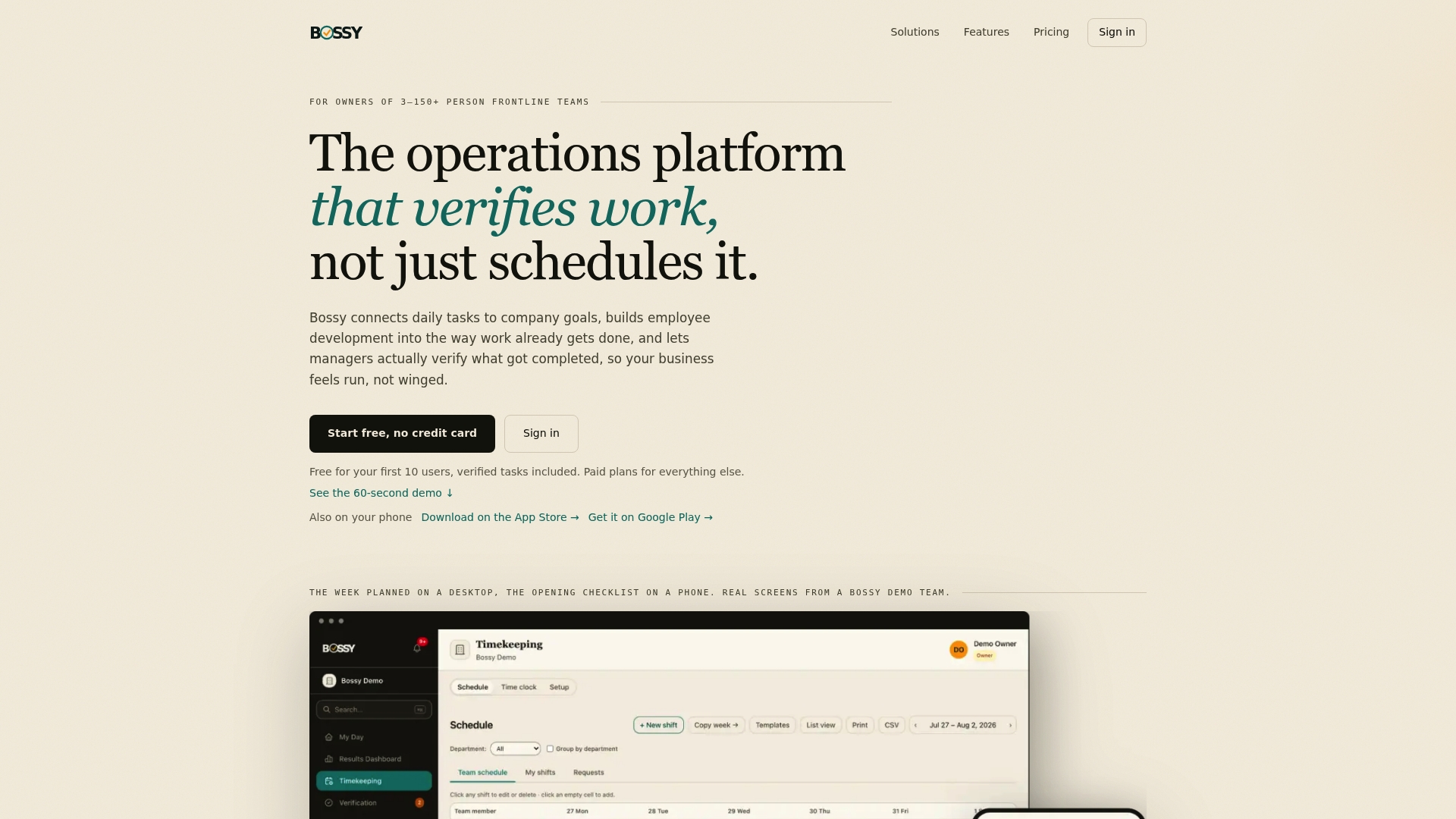
- Start on our free plan to test task verification with your real team, then move to Operations for scheduling, photo proof, and geofenced time clocks.
- Compare plans on our pricing page, from Growth at $25 a month to Operations at $30 a month and Scale + at $50 a month.
- Review our feature set to see exactly what maps to your current Deputy setup.
If you want a hand planning the switch, send us a note through our contact page and we'll share a migration checklist. Visit Bossy to get started.
FAQ
Is there a free version of Deputy?
Deputy's own pricing page outlines its paid plan tiers and add-ons rather than a permanent free plan. If a free option matters to you, Jibble and Clockify advertise free tiers (check their pricing pages for limits), and Bossy's Free plan covers task verification, with scheduling on the paid Operations plan.
What are the top 5 workforce management software?
Based on reviewer comparisons and feature depth, workforce management tools are frequently evaluated together by reviewers, though each serves a different niche. G2's competitor data shows Connecteam, Homebase, and When I Work as commonly compared alternatives, while Bossy adds task verification and Rippling adds deeper payroll automation.
Does the Deputy app track you?
Deputy's time and attendance features include location-based clock-in tools as part of its official feature set on its pricing page. Specific tracking behavior, including GPS or geofencing, depends on which plan and settings an employer enables.
What is the best employee scheduling tool?
The best tool depends on what else you need beyond scheduling. For frontline teams that also need task verification and operational checklists, Bossy is built specifically for that combination; for restaurant labor forecasting, 7shifts fits better; for pure scheduling speed, When I Work is a strong, simple choice.
How long does it take to migrate off Deputy?
A typical migration runs 12 to 16 weeks across five phases, according to implementation research from Software Advice: planning, configuration, data migration, testing, and training through go-live. Running a parallel payroll cycle during testing helps confirm the new system's output matches before you fully cut over.
Sources
- Best 15 Deputy Alternatives in 2026 - Software Advice
- Top 10 Deputy Alternatives & Competitors
- Deputy Pricing - Compare Our Plans & Try For Free — Deputy