Geofencing Time Clocks for Field Teams: Verify Work, Not Location
Christian MontenegroOctober 14, 202614 min read

A geofencing time clock lets employees punch in only when their phone is inside a virtual boundary around a work site. If your team moves between locations, you need one, and you want it paired with proof that work got done. Bossy is our direct answer: geofenced clocks plus photo verification and approval queues in one platform.
TL;DR:
- Android geofence alerts average about 2 minutes and can take up to 6 minutes for stationary phones, so arrival punches may not register instantly.
- Start with a 100 to 150 meter radius and allow and flag enforcement, then review real punches before tightening boundaries or blocking mobile punches.
- Geofencing suits crews working across sites, while fixed workplaces may favor biometric or badge clocks; phones confirm location, not identity or completed work.
- Collect location only at punch time, explain background access and written policies, and limit coordinate access to payroll or scheduling staff.
- Pair location records with photo proof, task checks, or manager approval because a phone’s presence alone cannot verify the work.
Table of Contents
- What a geofencing time clock is and who benefits
- How geofencing works: OS limits, latency and permissions
- Setup and admin controls: a checklist for configuring geofences
- Feature checklist for choosing a geofence-capable time-tracking tool
- Rollout tactics: how to improve adoption and reduce false blocks
- Compliance considerations for employee location tracking
- Troubleshooting geofencing accuracy and false triggers
- Geofencing compared with biometric clocks and RFID
- Why verification plus geofenced clocks beats raw location logs
- How Bossy handles geofenced clocks plus verification, scheduling and reporting
- FAQ
- Sources
What a geofencing time clock is and who benefits
A geofence is a virtual boundary drawn around a place. Android's geofencing API defines each fence by latitude, longitude and a radius, and an app can ask to be told when a phone enters the area, leaves it, or stays inside for a set time. Those are the enter, exit and dwell events.
A geofenced time clock uses those events to decide whether a punch is allowed or should be flagged. That is different from continuous GPS tracking, which records a phone's movements all day. Event-based geofencing only cares about one question: was this person at the site when they clocked in? That matters for two reasons. Your team is far more likely to accept a clock that checks location at punch time than an app that follows them around. And the phone's battery lasts longer, so people leave the app alone.
You will get the most from a geofencing time clock if you run:
- Field crews such as cleaning, landscaping and maintenance teams that start the day at different addresses
- Multi-site retail and restaurants where staff clock in at several locations
- Delivery and route teams that need a verified start and end at each depot
- Pop-up events and temporary sites where there is no wall-mounted clock at all
If everyone works at one desk in one building, you probably don't need it.
How geofencing works: OS limits, latency and permissions
Your phone doesn't check its position every second against your fence. The operating system watches for you and sends the app an event when something changes. That design saves battery, but it comes with limits you should plan around.
First, speed. Android's own battery guidance says geofence alerts register in about 2 minutes on average and can take up to about 6 minutes when a device has been sitting still. So a worker who walks up to a door and punches right away may not be "inside" yet in the system's eyes.
Second, permissions. If the app needs to watch fences while it is closed, it needs background location access. Android's guidance says that access must be requested transparently, and that apps which misuse it or poll GPS nonstop drain batteries and get throttled by the OS. Employees who see a vague permission prompt tend to say no, and then punches fail.
Third, accuracy. GPS, Wi-Fi and cell signals are noisy, especially indoors. Practitioners recommend a sufficiently broad radius so a worker standing at the right door isn't rejected.
What this means for you:
- Expect a short delay between arriving and being recognized
- Choose a tool that uses the OS geofence tools and checks the result on the server, not one that polls GPS all day
- Start with a radius of at least 100 meters and tighten it only after you have data
- Explain the background location prompt to your team before they see it
Setup and admin controls: a checklist for configuring geofences
Most geofence-capable tools follow a similar path. Here is the order we suggest.
- Turn on mobile clocks and confirm every employee has the app installed and is signed in.
- Drop a map pin on each work site and give each one a clear name.
- Set the radius for each pin. Start between 100 and 150 meters, then adjust after a week of real punches.
- Pick your enforcement mode. Blocking stops mobile punches outside the fence. Allow-and-flag lets the punch through but marks it for review. Settings like this are common, and one vendor's help center describes both options for admins.
- Decide on fallbacks. Geofence checks usually apply to mobile punches only, so kiosk, web and manual entries need their own rules. Remember that changing enforcement affects the whole company at once.
- Tell employees how to grant location access, and give them a short script for what to do if a punch is blocked.
Pro Tip: Start with allow-and-flag during the initial rollout. You will see where your pins and radii are off without locking anyone out of getting paid.
Block mode suits sites where being on location is the whole point of the shift. Flag mode suits mixed teams, new rollouts, and places with weak signal.
Feature checklist for choosing a geofence-capable time-tracking tool
Don't compare tools by their landing pages. Compare them by what they let you do when a punch looks wrong. Here is what we would check.
Geofence controls
- Several fences per company, with separate radii
- Adjustable dwell time and radius
- A choice between blocking and flagging
Verification and accountability
- GPS coordinates saved with each punch
- Photo evidence and a manager approval queue
- Audit logs showing who changed what
- Reports for missing clock-outs
Operations
- Scheduling tied to the clock, so late arrivals are obvious
- Payroll exports in a format your provider accepts
- Job codes for costing, and offline support for weak signal
Privacy and permissions
- No tracking outside punch moments
- A clear permission screen written in plain words
- A policy template you can hand to employees
The table below sums up what to ask for and why it matters.
| Capability | Why it matters | What to ask a vendor |
|---|---|---|
| Multiple fences with custom radius | Sites differ in size and signal | Can each site have its own radius? |
| Block or flag modes | Lets you roll out gently | Can I switch modes per site? |
| Photo proof and approvals | Location is not proof of work | Is there a manager approval queue? |
| Audit logs and reports | Settles disputes fast | Can I export missing clock-outs? |
| Fallback clock methods | Phones die, signal drops | Are manual edits logged? |
On pricing, geofence enforcement, approvals and audit logs often sit in paid tiers, while free plans usually cover basic punches and a small headcount. Always ask which features you lose when you downgrade. For our own plans, see our pricing page.
Rollout tactics: how to improve adoption and reduce false blocks
Rolling out to everyone on day one is how you get a flood of angry messages. Go slower.
- Pilot at a few sites. Choose one easy site, one with poor signal, and one big one. Check that pins sit where people actually enter.
- Give staff a short training session. Give staff a short checklist: install, sign in, allow location, test a punch while you watch.
- Prepare a blocked-punch plan. Tell people exactly who to message and how a manager can approve a late punch.
- Pick tools that respect the battery. Prefer vendors built on OS geofence tools, and be wary of any app promising live, second-by-second GPS.
- Review the exceptions weekly. Run a report on flagged and blocked punches, then move pins or widen radii where the same site keeps showing up.
Pro Tip: When one employee reports a blocked punch, check the whole site. Usually it's the pin or the radius, not the person.
Adoption follows trust. If workers see that a flagged punch gets reviewed fairly and quickly, they stop fighting the app.
Compliance considerations for employee location tracking
Rules about tracking employees vary a lot by country and by state or region, so treat this as a set of habits, not legal advice. We can't tell you what is legal where you operate, and you should confirm with an employment lawyer or your local labor authority.
A few habits hold up almost everywhere:
- Track only what you need. Checking location at punch time is easier to justify than watching someone all day.
- Tell people first. Put it in writing: what is collected, when, who sees it, and how long you keep it.
- Get consent where required. Some places need explicit agreement, and the permission prompt on the phone doesn't replace your own policy.
- Keep it off the clock. Don't collect location outside working hours.
- Limit access. Only people who handle payroll or scheduling should see coordinates.
- Apply it fairly. Use the same rules for everyone at a site.
Event-based geofencing is usually the lighter choice here because it records far less than a continuous trail. Pair that with a plain-language policy and you remove most of the worry.
Troubleshooting geofencing accuracy and false triggers
Most problems fall into a few patterns, and almost all of them can be fixed from the admin side.
"I'm standing at the door and it says I'm outside." The radius is probably too tight, or the pin sits on the wrong side of a large building. Widen the radius toward 150 meters and move the pin to the main entrance. Remember the delay too: the OS may need a couple of minutes to notice an arrival, a lag that Android's guidance notes can stretch longer for a stationary phone.
"It worked yesterday, not today." Check that background location is still allowed. Phone updates and battery saver modes can quietly switch it off. Have the employee reopen the app and confirm the permission.
"Someone clocked in from the parking lot next door." Your radius is too generous for a crowded area. Shrink it a little, or use flag mode and review those punches.
"Indoor sites keep failing." Malls, basements and warehouses weaken GPS. Use a larger radius and keep a manual fallback with manager approval.
"Everything is blocked at one site." Look at the pin first. A mistyped address or a pin dropped on a map label is common.
When you can't resolve it, use the audit log to see who approved or changed the punch, so nothing disappears.
Geofencing compared with biometric clocks and RFID
Geofencing isn't the only way to confirm someone showed up. Each method answers a slightly different question.
Biometric clocks (fingerprint or face) confirm who is punching. They need a device at each site, which makes them a good fit for one fixed location and a poor fit for a crew that moves. They also bring their own privacy and consent rules.
RFID or badge readers confirm that a badge was tapped at a reader. They are quick and cheap per tap, but badges can be handed to a friend, and every site needs hardware and upkeep.
Geofenced phone clocks confirm that a phone was in the right place. They need no extra hardware and follow the team to any address. The trade-off is that a phone isn't a person, and location isn't proof of work.
| Method | Best for | Main weakness |
|---|---|---|
| Geofenced mobile clock | Mobile and multi-site teams | Phone can be separated from person |
| Biometric clock | Single fixed site | Hardware cost, privacy rules |
| RFID badge reader | Fixed entry points | Badge sharing, hardware at each site |
Hardware GPS trackers on vehicles are another option for fleets that need to track vehicles rather than people. Many managers end up combining a geofenced clock with a verification step instead of picking one method alone.
Why verification plus geofenced clocks beats raw location logs
Here is our honest view. A location log tells you where a phone was at one moment. It says nothing about whether the bathrooms got cleaned, the shelves got stocked, or the delivery got signed for. Managers who rely only on pins end up with a tidy map and the same old guesswork.

Geofencing is a good gate at the start of a shift. The proof comes after: a photo, a checked task, a manager approval. When the two are tied together, a punch becomes the beginning of a story you can verify, not a data point you have to interpret. That is also how you stop time-clock fraud without hovering over people; we wrote more about it in our post on stopping time-clock fraud without micromanaging, and about checking results in how to know the work actually got done.
Trust runs on evidence, not surveillance. Good teams like being able to show their work.
— Christian
How Bossy handles geofenced clocks plus verification, scheduling and reporting
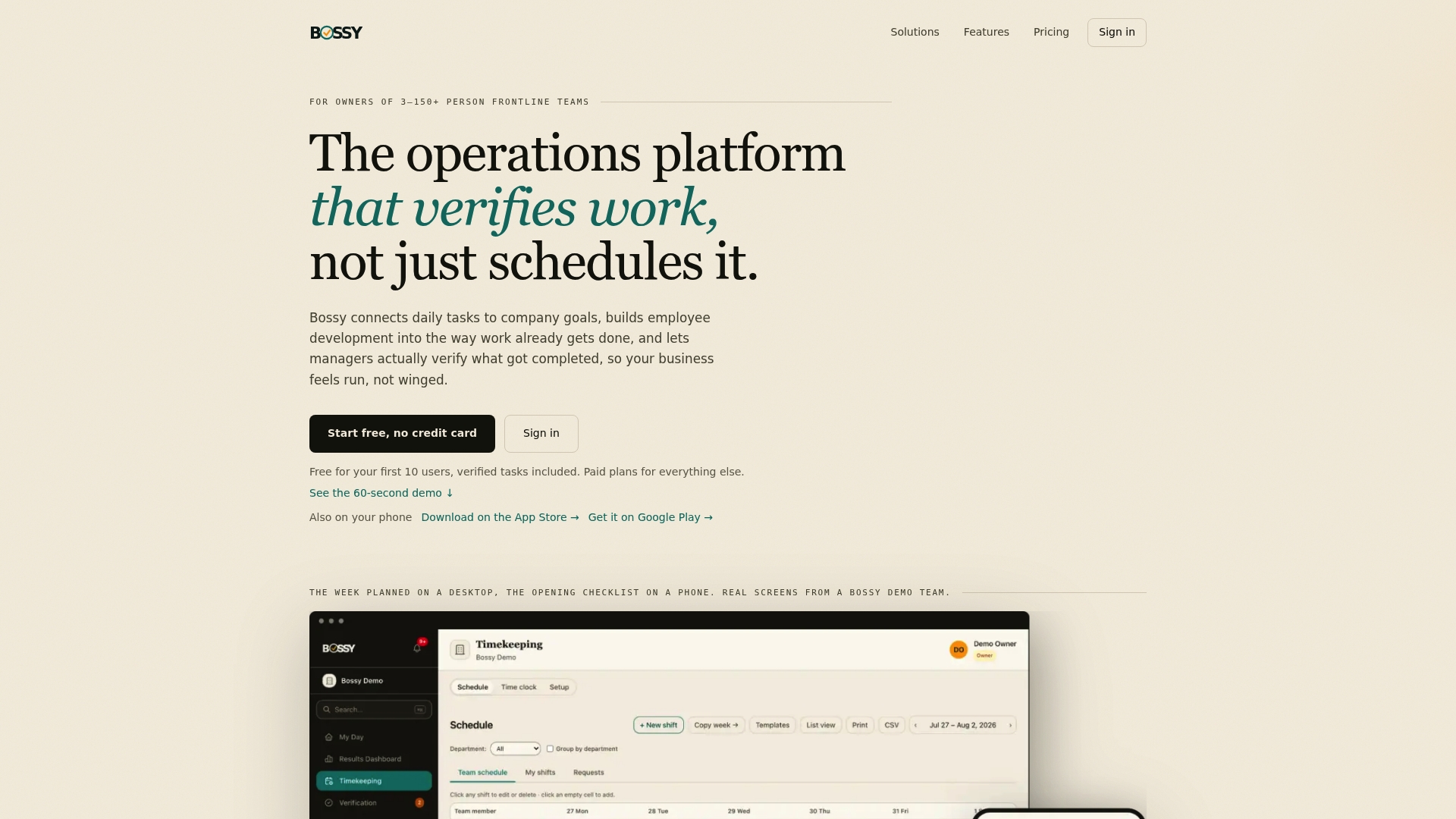
We built Bossy for managers who can't be everywhere. Our geofenced time clocks sit inside the same platform as your tasks, schedules and approvals, so a punch and the work behind it live in one place.
What you get that matters for geofencing:
- Geofenced time clocks for mobile punches
- Task verification with photo proof and a manager approval queue
- Employee scheduling
- Audit logs and reports
- Checklists and goal tracking in the same app, with team chat on Growth and Scale +
We are a fit for frontline teams of roughly 3 to 150 people: restaurants, cleaning companies, salons, multi-site retail and service crews. If that's you, see what we offer for cleaning companies or for restaurants, or browse all our features.
Geofenced time clocks, scheduling and checklists are on our Operations plan at $30 per month (15 users included) and on Scale +. Our Free plan covers task verification and the approval queue. Check the details on our pricing page.
FAQ
Is Clockify truly free?
Clockify offers a free tier, but we don't have its current terms in front of us, so check its pricing page directly. In general, free plans cover basic punches, and features like geofence enforcement, approvals and audit logs often sit in paid tiers. Our own Free plan is described on our pricing page.
What does a geofencing zone mean?
A geofencing zone is a virtual boundary around a real place. Android defines it by latitude, longitude and a radius, and an app can react when a phone enters, exits or stays inside it. In a time clock, the zone decides whether a punch is allowed or flagged.
What are some good time clocking apps?
Start with what you need: geofence enforcement, photo proof, approvals, scheduling and payroll exports. Compare tools on those features and on what the free tier leaves out. We built Bossy for frontline teams that want geofenced clocks and verification together.
How does a GPS clock work?
A GPS or geofenced clock checks the phone's location when someone punches in or out and compares it to a boundary around the work site. The phone's operating system watches the boundary and reports enter and exit events, which can take about 2 minutes on average to register. The app then allows the punch or flags it for review.