Employee Scheduling Software: Verify Work for 3–150 Frontline Teams
Christian MontenegroOctober 12, 202617 min read

Bossy is our pick for most frontline businesses because it pairs scheduling with task verification, so managers see not just who worked a shift but what actually got done. If your team is small and budget is the only concern, a free-plan tool or an ultra-low per-seat app might tempt you. But for owners managing 3 to 150 frontline employees, schedule accuracy alone won't stop dropped tasks or missed handoffs.
TL;DR:
- Test the software with your team for two weeks, then export a sample timesheet to check accuracy and confirm staff can clock in without training.
- Before signing, confirm whether pricing is per employee or per location, what extra seats cost, and whether month to month contracts or a pilot are available.
- Free plans are useful for testing, but may omit single sign-on and advanced payroll exports; check upgrade limits before adding staff or locations.
- Ask whether GPS data is collected only at clock in and clock out, and whether access controls restrict managers from viewing sensitive employee details.
Table of Contents
- The best employee scheduling tools at a glance
- How we evaluated these scheduling tools
- What to check during vendor demos and proposals
- Short profiles: what each scheduling tool does best
- Why linking schedules to verified tasks changes how shifts run
- What to expect from support and training
- Keeping employee data secure and compliant
- What user reviews say about real-world performance
- What actually matters when choosing scheduling software
- Try Bossy for scheduling that includes task verification
- FAQ
- Sources
The best employee scheduling tools at a glance
Picking scheduling software usually comes down to one question: do you just need shifts covered, or do you need to know that work actually happened? We built this shortlist around that distinction, starting with the tool we built for exactly that purpose.

Here's how the rest of the field stacks up:
- Connecteam: a mobile-first app built for deskless teams, with flat-rate pricing bundles that cover scheduling and basic ops tasks together.
- Homebase: scheduling, time tracking, and payroll in one platform, with a free plan aimed at single-location small businesses (check its pricing page for current limits).
- Deputy: strong labor forecasting and compliance automation, aimed at businesses that need to stay ahead of overtime and labor-law rules.
- When I Work: a budget-friendly option (check its pricing for current per-user rates), built around easy shift swaps and self-service scheduling.
- Sling: straightforward roster building with built-in team messaging, aimed at managers who want simple day-to-day scheduling.
- Planday: designed for multi-department and multi-location businesses that need advanced permission controls.
- Buddy Punch: an easy-to-use time clock and drag-and-drop scheduler for smaller teams that want low administrative overhead.
- Findmyshift: a minimalist scheduling tool for small teams that don't want a steep learning curve.
- Agendrix: scheduling bundled with staff engagement features for teams that want more than just a roster.
- Factorial: an HR platform with scheduling folded into a broader HR suite.
- Workforce.com: enterprise-grade workforce management with forecasting and analytics built for larger operations.
- Zoomshift, 7shifts, monday AI Workspace, ClockShark, edays, and Workfeed round out the category, each with scheduling at the core and varying degrees of time tracking, payroll integration, or industry specialization layered on top.
The right pick depends less on star ratings and more on what you're actually trying to solve: shift coverage, labor cost control, or making sure the work scheduled is the work completed.
How we evaluated these scheduling tools
We didn't rank these tools by popularity. We looked at what managers actually need day to day and checked each platform against it.
- Scheduling features: shift creation speed, availability rules, auto-scheduling, and shift swap workflows.
- Time tracking: GPS or geofenced clock-ins, break tracking, and overtime flags.
- Mobile experience: whether frontline staff can realistically use the app on a shared or personal phone during a shift.
- Payroll and POS integrations: how cleanly hours flow into existing payroll or point-of-sale systems.
- Pricing model: per-seat versus per-location pricing, and what's gated behind higher tiers.
- Support and onboarding: whether help is available when a schedule breaks on a Friday night.
- Deployment effort: how long it takes a manager with no IT background to get a team live.
Our research pulled from Capterra's aggregated review analysis, which rates tools on ease of use, feature completeness, and value using verified user reviews, alongside Zapier's independent roundup of scheduling apps organized by best-for category. We weighted verified user feedback most heavily, treated vendor documentation as a secondary check on feature claims, and drew on our own operational experience building scheduling and task verification tools for frontline teams.
Pro Tip: Before you commit, run a two-week trial with your actual team and export a sample timesheet. If the export is clean and your staff didn't need a training session to clock in, you've found a tool that will hold up in practice.
What to check during vendor demos and proposals
A demo is where glossy marketing meets your actual team. Walk in with a checklist, not just curiosity.
On the feature side, confirm:
- Mobile scheduling that works on a shared tablet or a staff member's own phone.
- Shift swapping that doesn't require manager approval for every single trade.
- Automated scheduling based on availability rules and labor budgets.
- GPS or geofenced time clocks that prevent buddy-punching.
- Overtime alerts built into the schedule view, not a separate report you have to pull.
- Payroll and POS integrations that match the systems you already run, or a clean timesheet export if the tool doesn't integrate.
- Leave management that syncs with the live schedule.
On the commercial side, ask about:
- Whether pricing is per-seat or per-location, and what happens when you add a fifth location.
- Extra-seat fees once you exceed your plan's included headcount.
- Contract length and whether a month-to-month option exists.
- Pilot or trial availability before you sign anything longer.
Operationally, you also want clarity on deployment timeline, admin roles and permissions, single sign-on support if you run a larger organization, and how easily you can export your own data if you switch tools later. Capterra's review data repeatedly flags multi-location permissioning and missing SSO support as the complaints that surface after purchase, not during the sales call, so ask about both directly.
Three questions worth asking in every demo: What happens to our data if we cancel? How does support respond on a weekend when a schedule needs to change fast? Can we see a real timesheet export, not a sample screenshot? And three red flags: a vendor who can't answer the data-export question clearly, a demo that only shows the happy path with no error states, and pricing that's quoted verbally but never confirmed in writing.
Pro Tip: Ask the sales rep to show you the mobile app on their own phone, live, not a desktop screen share. If it's clunky for them, it will be clunky for your staff.
Short profiles: what each scheduling tool does best
Here's a closer look at each tool, with a specific question you should ask if you're taking it to a demo.
Bossy goes beyond scheduling: it layers in task verification with photo proof, geofenced time clocks with timesheet approval, inventory control, recurring checklists, and announcements (plus team chat on the Growth and Scale + plans). It fits frontline businesses with 3 to 150 employees, especially restaurants, salons, fitness studios, and multi-location retail where the owner can't be on-site for every shift. The standout is running the schedule, daily tasks, checklists, and cascading goals in one app, so a shift isn't just covered, it's accountable. Pricing runs from a free plan (task verification and the approval queue) to Operations ($30/month for 15 users), which adds scheduling, the time clock, checklists, and inventory, and Scale + ($50/month for 35 users). Demo checklist item: ask to see the manager approval queue in action, specifically how a flagged task (like a missed stock count) surfaces versus a completed one.

Connecteam is a mobile-first app built for deskless teams, bundling scheduling with basic operational tools. Best for businesses where almost every employee works from a phone, not a desk. Standout: flat-rate pricing that doesn't scale per seat the way many competitors do. Demo question: does the flat rate cap out at a certain headcount, and what's the overage cost?
Homebase bundles scheduling, time tracking, and payroll, with a free plan aimed at single-location small businesses. Best for teams just starting to formalize scheduling and want to test the waters without a subscription. Demo question: which payroll features are locked behind the paid tier?
Deputy focuses on labor forecasting and compliance automation. Best for businesses in regulated industries worried about overtime violations or break-law compliance. Standout: built-in compliance checks that flag scheduling conflicts before they become legal problems. Demo question: does the compliance engine cover the specific labor rules in your region, or is it a general framework?
When I Work keeps things affordable with per-user pricing (check its pricing page for current rates), with an emphasis on shift swaps and employee self-service. Best for budget-conscious teams that want staff to manage their own trades. Demo question: how much manager oversight is required to approve a swap, and can that be automated?
Sling keeps scheduling simple with straightforward roster building and built-in messaging. Best for managers who want to avoid a steep learning curve. Demo question: how does the messaging feature handle urgent same-day shift changes?
Planday is built for multi-department, multi-location businesses needing advanced permission structures. Best for operations with several sites or departments that need different managers to see different slices of the schedule. Demo question: how granular are the permission settings, down to a single location or role?
Buddy Punch emphasizes ease of use with a drag-and-drop scheduler and simple time clock. Best for smaller teams that want something intuitive without much setup. Demo question: how does the time clock prevent clocking in from off-site?
Findmyshift strips scheduling down to a minimalist interface. Best for small teams that find most scheduling software overbuilt for their needs. Demo question: what happens as the team grows past a handful of employees, does the interface still hold up?
Agendrix pairs scheduling with staff engagement features like recognition and feedback tools. Best for teams that want scheduling to double as a retention tool. Demo question: how is engagement data reported back to managers?
Factorial folds scheduling into a broader HR suite. Best for organizations that want HR, payroll, and scheduling under one roof. Demo question: how deep is the scheduling module compared to the standalone tools on this list?
Workforce.com is built for enterprise-scale workforce management, with forecasting and analytics as the core strength. Best for larger operations with complex labor-cost modeling needs. Demo question: what's the minimum team size this tool is designed for, and does pricing reflect that?
Zoomshift, 7shifts, monday AI Workspace, ClockShark, edays, and Workfeed each offer scheduling with a specific lean: 7shifts toward restaurant-specific scheduling, ClockShark toward field and construction teams, monday AI Workspace toward teams already using monday's broader project tools, and edays toward leave and absence management layered onto scheduling. If one of these fits your industry specifically, it's worth a direct look, but confirm the core scheduling and time-tracking features match what's covered above before you commit.
Why linking schedules to verified tasks changes how shifts run
A schedule tells you who's supposed to show up. It doesn't tell you whether the closing checklist got done, whether the walk-in cooler was checked, or whether the opening manager actually counted the drawer. That gap is where most follow-up time gets lost.
When scheduling is connected to task verification, a manager doesn't have to call around to confirm things happened. A completed shift comes with photo proof and an approval queue, so accountability is built into the handoff instead of relying on memory or trust. In a restaurant, that means a closing shift isn't marked done until the prep list and cleaning tasks are actually verified. In retail, it means a stock count tied to a shift gets flagged if it's skipped, not discovered three days later during an audit. For field teams, it means a job isn't closed out until proof of completion is attached, not just a timestamp.
Managers often measure schedule success by shift fulfillment and follow-up time, not labor cost alone. Tools that make verification and handoffs visible cut down the time managers spend chasing confirmation that work got done.
We cover more of these patterns in our restaurant scheduling guide, where verified task completion matters as much as who's on the clock.
Pro Tip: If you manage more than one location, ask whether task verification data rolls up into a single dashboard. Chasing updates location by location defeats the purpose.
— Christian
What to expect from support and training
Scheduling software usually breaks your routine the first week, not because it's bad, but because habits take time to shift. What varies most between vendors is how much help you get during that window.
Most platforms in this category, including Bossy, offer onboarding resources like setup guides and in-app walkthroughs so a manager with no technical background can get a team live without outside help. Live support availability varies by plan tier across vendors, so it's worth confirming directly during a demo whether support is email-only, chat-based, or includes phone access, and what the response time looks like on a weekend when a schedule needs to change fast.
Training materials matter just as much for frontline staff as for managers. If your team is mostly using the mobile app to clock in and swap shifts, look for vendors that offer short video walkthroughs or in-app tooltips rather than lengthy manuals nobody will read. The best sign of good support isn't a long features list, it's how quickly a real question gets a real answer when something goes wrong mid-shift.
Keeping employee data secure and compliant
Scheduling software holds sensitive information: names, contact details, availability, sometimes wage rates and location data from GPS clock-ins. That makes security a practical concern, not a box to check.
Look for standard protections: encrypted data storage, role-based access so only the right managers see wage or personal details, and audit logs that show who changed a schedule or approved a timesheet. For GPS-based time clocks, ask how location data is stored and whether it's only collected at clock-in and clock-out rather than tracked continuously through a shift.
Compliance requirements vary significantly by country and region, covering everything from data residency rules to how long employee records must be retained. No single platform can promise universal compliance, so confirm with each vendor how their system handles the specific labor and data-privacy rules that apply where you operate, and loop in legal counsel for anything involving multi-region payroll or employee monitoring.
What user reviews say about real-world performance
Review platforms give a useful, if imperfect, window into how these tools hold up once a team is actually using them daily. Capterra's 2026 analysis aggregated thousands of verified reviews across scheduling tools, rating them on ease of use, feature completeness, and value, and the patterns that repeat across tools are consistent: managers of frontline teams care most about mobile-first scheduling, simple shift swaps, and time clocks that actually stop buddy-punching, more than they care about long feature lists.
Zapier's independent roundup echoes a similar theme: the strongest fit comes from matching the tool to what you're actually scheduling, whether that's staff shifts, client appointments, or field jobs, rather than defaulting to whichever tool has the most reviews. Free plans show up often in this feedback as a useful way to test a tool before committing, though reviewers note they typically exclude enterprise features like single sign-on or advanced payroll exports once a team scales past a certain size.
What actually matters when choosing scheduling software
Most buying advice for scheduling software focuses on the wrong thing: feature counts. A tool with forty features you'll never touch isn't better than one with ten you'll use every shift.
The bigger blind spot is treating scheduling as the finish line instead of the starting point. Getting shifts covered is table stakes. The real operational cost shows up after the schedule is published, when a manager has no way to confirm the closing checklist happened or the stock count got done without walking the floor or calling around. That follow-up time is the hidden tax most buyers never price into their decision.
If we had to tell a manager one thing to prioritize first, it's this: don't just ask whether a tool can build a schedule. Ask whether it can tell you, without a phone call, that the work tied to that schedule actually happened. That single question filters out a lot of otherwise solid tools.
Try Bossy for scheduling that includes task verification
If you've made it this far, you already know scheduling alone leaves a gap between who's on shift and what actually gets done. We built Bossy to close that gap: scheduling, geofenced time clocks, inventory control, recurring checklists, and announcements, all alongside task verification with photo proof and a manager approval queue.
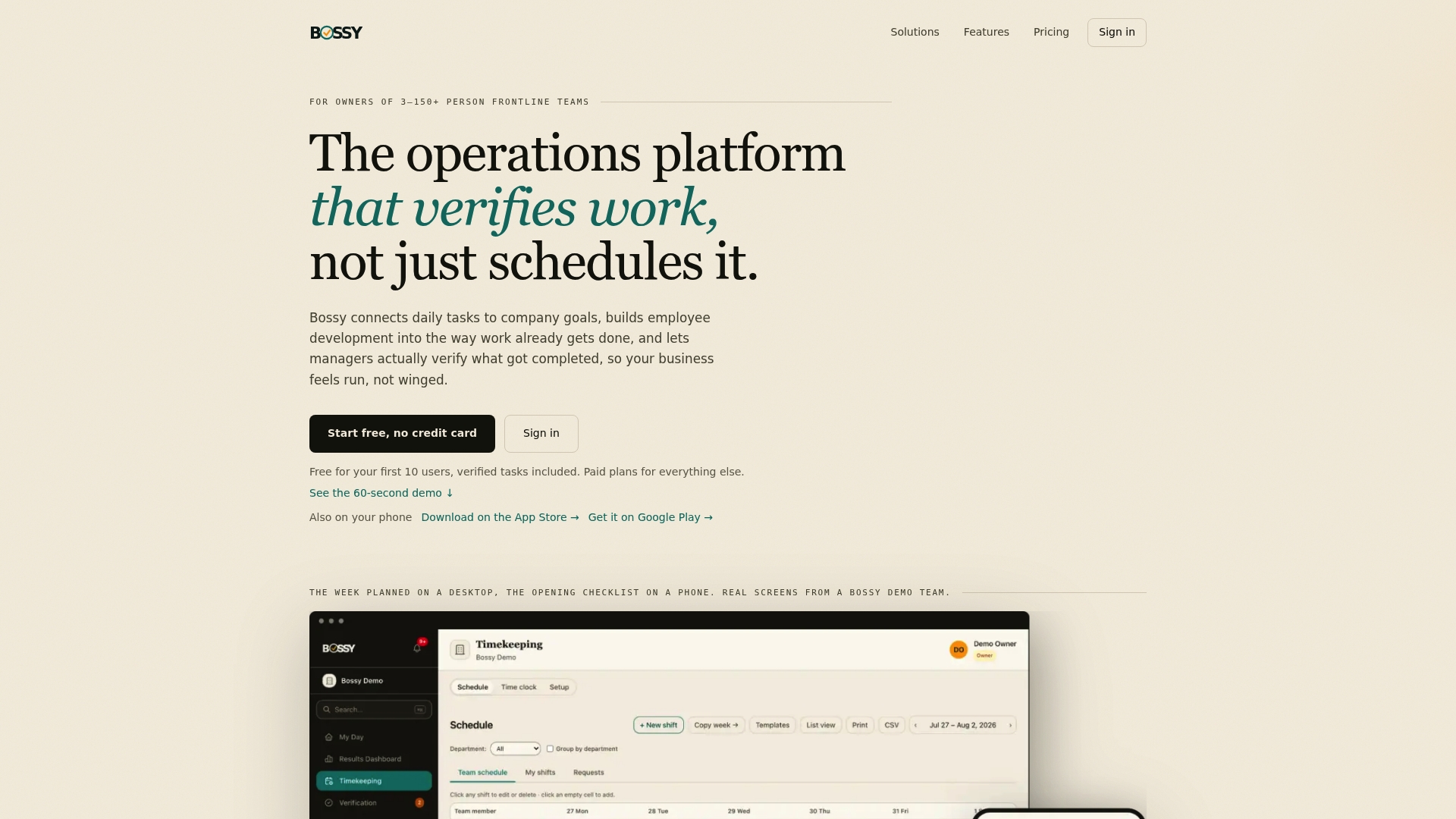
It fits businesses with 3 to 150 frontline employees, including restaurants, salons, fitness studios, and multi-location retail, where the owner can't personally confirm every task on every shift. You can start on our free plan for task verification, then move to Operations or Scale + when you're ready for scheduling and the time clock, with a straightforward $5 per-seat add-on if you go past your included headcount. Explore the full feature set or head to our pricing page to start your free plan today.
FAQ
What is the best software for employee scheduling?
The best pick depends on what you need beyond coverage: Bossy is our pick for frontline teams of 3 to 150 that want scheduling tied to task verification, while tools like Homebase or Connecteam suit teams that only need shifts and basic time tracking. Match the tool to your actual operational gap rather than picking the most popular name.
Does Microsoft have a staff scheduling tool?
Yes, Microsoft Teams includes a Shifts app that lets managers create and manage team schedules directly within Teams. It covers basic shift scheduling but doesn't include task verification, inventory tools, or the operational features found in dedicated scheduling platforms.
What is the best free scheduling software?
Homebase and Connecteam are commonly cited for offering a free plan rather than only a time-limited trial, making them solid starting points for single-location small teams (check each pricing page for current limits). Bossy also offers a free plan, built around task verification and an approval queue; its scheduling and time clock start on the paid Operations plan.
How do I choose between scheduling software options?
Start with your actual operational gap: if you just need shifts covered, a simple tool with mobile access and shift swapping may be enough. If missed tasks or inconsistent handoffs are a bigger problem than coverage itself, look for a platform that ties scheduling to task verification rather than treating them as separate systems.
What should I check before signing a scheduling software contract?
Confirm the pricing model, per-seat or per-location, and what happens to cost as you add staff or sites, along with contract length and whether a trial period is available. Also ask about data export options so you're not locked in if you need to switch tools later.